Showing posts with label wxpython. Show all posts

Wednesday, June 29, 2011

Programmatically Scrolling a wxListBox

Something that I stumbled on recently that I could not for the life of me find an answer to. It seems so simple. You have a listbox and you want to programmatically scroll it. Why would you want to do this? Well, maybe you need to refresh the listbox, that was my case. In most cases you have to clear the list and repopulate it. Which is fine but it'll plop your user right back to y=0, which may be fine for small lists, but for large lists that can be a pain! Also you might want to persist a listbox position between sessions.

There are functions such as EnsureVisible which will scroll to a specific item, which might work for some use cases, but for mine I wanted to refresh the ListBox and in that case whatever item I chose may very well be gone once the listbox is repopulated. Aside from that, there's no handy way, that I could find, to figure out which items are currently in the view! Scrolling via item specification is a pretty half-baked way to achieve the over-all goal of automatically scrolling the listbox.

The first function I came across is the aptly named GetScrollPos, it takes an argument which specifies the orientation of the position you want. (wx.VERTICAL or wx.HORIZONTAL) It allows you to get the vertical position quite easily. Halfway there, right? Well... not quite. See, there is also a 'handy' function called SetScrollPos. Sounds like a match made in heaven, no? No. You see, SetScrollPos sets the scrollbar's position, but it does not effect the underlying window or widget. So even though your vertical scrollbar is now scrolled to position Y you'll notice that your list is still showing starting at item 0... not terribly helpful. I googled and trawled forums and scanned the api documentation and could not find a clean or obvious approach.

There is a method listbox inherits called ScrollLines. It does exactly what you'd think it does based on the name. You pass it a number (negative or positive) and it will scroll X lines up or down (based on if the number is negative or positive respectively). Sounds promising! But there is no function to get the line you're scrolled to! And my hopes were dashed again.

Then I got desperate. I thought, 'What if I take the vertical output from GetScrollPos and feed it into ScrollLines?' Immediately I answered myself, 'Probably a great big, inconsistently-scrolling mess!' But I tried it anyway. And praise be to the wx.Gods, it worked! Now, I've only tested this one in Windows 7, I cannot attest to it working on any other Windows platform, let alone Mac or *nix/BSD.

Enough yammering, let's see some code! The below is from my media player project. self.seriesList is a wx.ListBox:

    def refreshList(self,evt=None):
        pos = self.seriesList.GetScrollPos(wx.VERTICAL)
        self.seriesList.Clear()
        for show in reversed(sorted(self.tv.getSeries(), key=lambda x: x.getName())):
            self.seriesList.Insert(show.getName()+' (%i/%i)'%(show.getWatchedEpisodeCount(),show.getEpisodeCount()),0,show)
        self.seriesList.ScrollLines(pos)

I hope this was helpful to someone! I couldn't find this anywhere.

Update 7/26/2011 -- This same method works for wx.ListCtrl as well.

wxPython AuiManager

I recently switched AnyBackup to use wx.AUI for pane management instead of just using plain old panels and sizers. First off, let me just say that SplitterWindows can go jump in a lake. They are painful to tweak, the end result isn't all that pretty, etc. Using the AuiManager, on the other hand, is very pleasant once your get your head around a few things!

A few benefits:
  • Prettier
  • Dockable, floatable, maximizable, closeable panels
  • Dead easy layout management
  • Did I mention it's pretty?
There are a few concepts you need to understand for AuiManager layout management

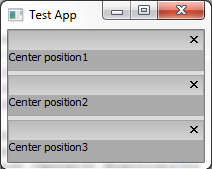
  • Direction (Left,Right,Center,Top,Bottom)
    • If you've ever used the BorderLayout in Java with Swing this shouldn't be too hard to understand
    • Each position represents a part of your frame, the top will add an item to the top, bottom to bottom, etc
    • The code for the below test application can be found here: http://pastebin.com/RTZjqfwp
  • Position
    • Position lets you place multiple items in a single area
    • If you're using left,center, or right position will stack items vertically
    • For top or bottom position will stack items horizontally
    • The code for the below test application can be found here: http://fpaste.org/HQ7E/
  • Row
    • Like positions, rows also let you stack multiple items in one area
    • Rows behave opposite positions, in left, center, and right items stack horizontally, etc
    • The code for the below test application can be found here: http://pastebin.com/sJLTyVsL

  • Layer
    • Notice in the above examples that when the left label is given a higher layer it takes up a global left position instead of a local left position, this is what I meant by higher layers 'trumping' lower ones

For those of you who haven't guessed yet, let me put this right out there for you, you can combine layers, positions, rows, and directions any which way you please. What does this mean? It means you can easily organize your content pretty much anyway you can think to mix and match these various control features.

Consider the below example:
We've created three sets of rows with two positions so we can stack both horizontally and vertically in one area. You can combine most any of these features. Experiment! Get a feel for how the various properties combine, it's the best way to learn. Code for the above example can be found here. I hope this example helps!


Tuesday, June 28, 2011

wxPython ListBox PopupMenu

I've been working on my TV Emulator project in Python for a few months now. For one of my windows I use a listbox and I wanted to create a popup menu. I've created plenty of popup menus with TreeCtrl's. It's easy enough, we've got a handy right click event which you can grab the position from. For listbox? No such luck.

If you google this issue you're likely to see many people say "Use a listctrl!" That's a perfectly valid answer, creating a popup menu is easy with a listctrl, but a listctrl is a more complex object and might be overkill for your needs. There's got to be a way to use a popup menu on a listbox, right? Right! Let's get to it.

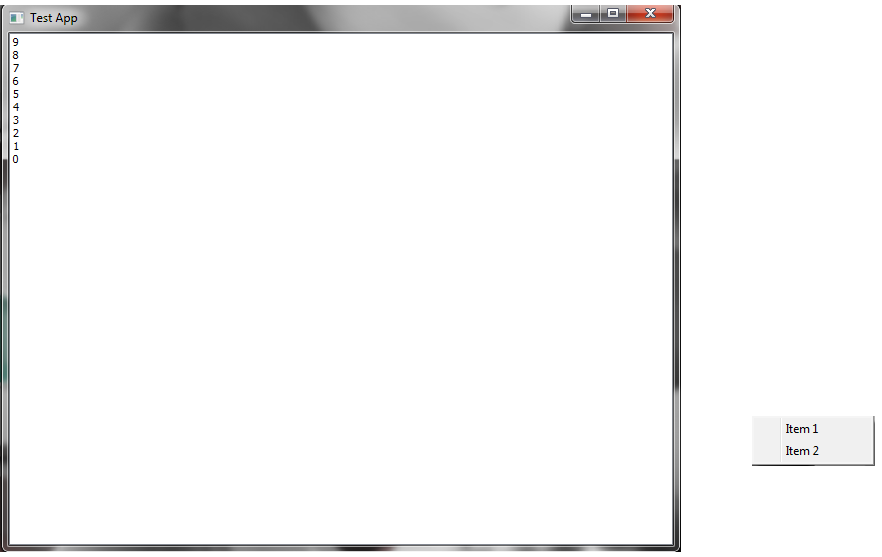
So, we can use the wx.ContextMenuEvent to fire a function when you right click the listbox, this event can be bound to a listbox with wx.EVT_CONTEXT_MENU, below is a test application I put together to show what happens when you try to grab the position from a ContextMenuEvent. (Hint: It doesn't work! See the screenshot below.)
#! /usr/bin/python

import wx
import wx.lib.agw.aui as aui

class myFrame(wx.Frame):
    def __init__(self,parent,ID,title,position,size):
        wx.Frame.__init__(self,parent,ID,title,position,size)
        self.listbox = wx.ListBox(choices=[],id=-1,parent=self,style=wx.LB_EXTENDED)
        self.mgr = aui.AuiManager(self)
        self.mgr.AddPane(self.listbox, aui.AuiPaneInfo().Center())
        for i in xrange(10):
            self.listbox.Insert(str(i),0,None)
        self.mgr.Update()
        self.listbox.Bind(wx.EVT_CONTEXT_MENU,self.showPopupMenu)
        self.createMenu()
        self.Centre()
        
    def createMenu(self):
        self.menu = wx.Menu()
        item1 = self.menu.Append(-1,'Item 1')
        item2 = self.menu.Append(-1,'Item 2')
        
    def showPopupMenu(self,evt):
        position = evt.GetPosition()
        self.PopupMenu(self.menu,position)

class WXApp(wx.App):
    def OnInit(self):
        frame = myFrame(None,-1,'Test App',wx.DefaultPosition,wx.Size(680,550))
        frame.Show(True)
        self.SetTopWindow(frame)
        return True

def main():
    wxobj = WXApp(False)
    wxobj.MainLoop()

main()  

Notice the popup menu shows up far off the point where the mouse clicked!
So obviously this doesn't work correctly as is, right? Well, there's a way around this. We can keep the contextmenu event, or we can use the right button up event, either works. The point is we need an event that fires when the right mouse button is clicked on the listbox. The problem is that we can't depend on the event for popup menu positioning because it isn't giving a position relative to your frame. But this information is accessible from wx. See below for a modified showPopupMenu function. (All other code is the same.)
    def showPopupMenu(self,evt):
        position = self.ScreenToClient(wx.GetMousePosition())
        self.PopupMenu(self.menu,position)
This looks better! The popup menu now appears where the mouse is located at click time.
With the above modification we're now grabbing the mouse's position directly from wx and then getting a position that's relative to the frame. With this position we can now accurately show a popup menu! I hope this helps someone.

Followers