Showing posts with label listbox. Show all posts

Tuesday, June 28, 2011

wxPython ListBox PopupMenu

I've been working on my TV Emulator project in Python for a few months now. For one of my windows I use a listbox and I wanted to create a popup menu. I've created plenty of popup menus with TreeCtrl's. It's easy enough, we've got a handy right click event which you can grab the position from. For listbox? No such luck.

If you google this issue you're likely to see many people say "Use a listctrl!" That's a perfectly valid answer, creating a popup menu is easy with a listctrl, but a listctrl is a more complex object and might be overkill for your needs. There's got to be a way to use a popup menu on a listbox, right? Right! Let's get to it.

So, we can use the wx.ContextMenuEvent to fire a function when you right click the listbox, this event can be bound to a listbox with wx.EVT_CONTEXT_MENU, below is a test application I put together to show what happens when you try to grab the position from a ContextMenuEvent. (Hint: It doesn't work! See the screenshot below.)
#! /usr/bin/python

import wx
import wx.lib.agw.aui as aui

class myFrame(wx.Frame):
    def __init__(self,parent,ID,title,position,size):
        wx.Frame.__init__(self,parent,ID,title,position,size)
        self.listbox = wx.ListBox(choices=[],id=-1,parent=self,style=wx.LB_EXTENDED)
        self.mgr = aui.AuiManager(self)
        self.mgr.AddPane(self.listbox, aui.AuiPaneInfo().Center())
        for i in xrange(10):
            self.listbox.Insert(str(i),0,None)
        self.mgr.Update()
        self.listbox.Bind(wx.EVT_CONTEXT_MENU,self.showPopupMenu)
        self.createMenu()
        self.Centre()
        
    def createMenu(self):
        self.menu = wx.Menu()
        item1 = self.menu.Append(-1,'Item 1')
        item2 = self.menu.Append(-1,'Item 2')
        
    def showPopupMenu(self,evt):
        position = evt.GetPosition()
        self.PopupMenu(self.menu,position)

class WXApp(wx.App):
    def OnInit(self):
        frame = myFrame(None,-1,'Test App',wx.DefaultPosition,wx.Size(680,550))
        frame.Show(True)
        self.SetTopWindow(frame)
        return True

def main():
    wxobj = WXApp(False)
    wxobj.MainLoop()

main()  
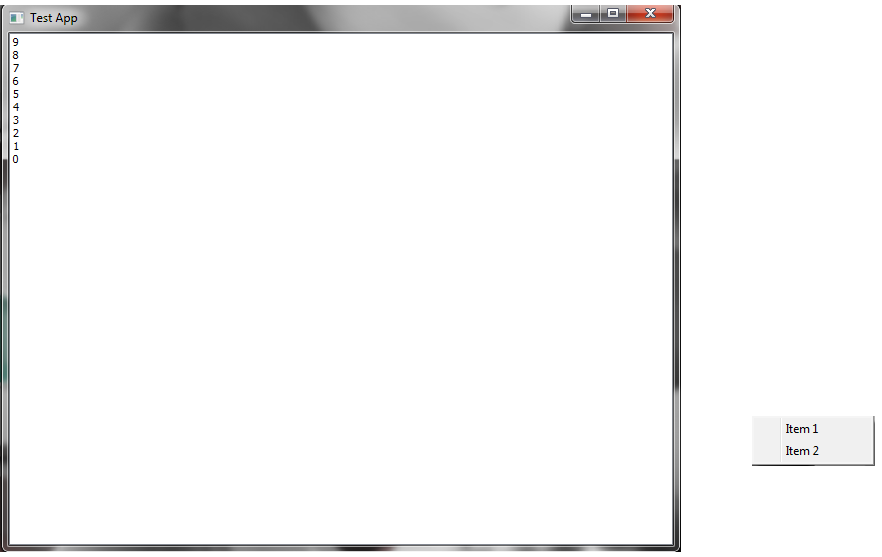
Notice the popup menu shows up far off the point where the mouse clicked!
So obviously this doesn't work correctly as is, right? Well, there's a way around this. We can keep the contextmenu event, or we can use the right button up event, either works. The point is we need an event that fires when the right mouse button is clicked on the listbox. The problem is that we can't depend on the event for popup menu positioning because it isn't giving a position relative to your frame. But this information is accessible from wx. See below for a modified showPopupMenu function. (All other code is the same.)
    def showPopupMenu(self,evt):
        position = self.ScreenToClient(wx.GetMousePosition())
        self.PopupMenu(self.menu,position)
This looks better! The popup menu now appears where the mouse is located at click time.
With the above modification we're now grabbing the mouse's position directly from wx and then getting a position that's relative to the frame. With this position we can now accurately show a popup menu! I hope this helps someone.

Tuesday, February 15, 2011

wxPerl ListCtrl

When writing AnyBackup I got up close and personal with the beast that is wxPerl and it's almost ridiculous reliance on its parent wxWidgets documentation. One of the most frustrating steps I encountered was trying to wrap my head around just how ListCtrl works. At first I started with the much simpler (and user friendly) ListBox, which does exactly what you think it does. It lets you display a list of strings and you can attach data objects to those strings which are accessible via click events. Very handy when you want to attach an object ref to each string. ListCtrl... well it isn't so nice.

It's not extremely apparent upon first glance and if you don't read the documentation carefully you may, as I did, stumble on blindly expecting to be able to hack in ListCtrl in ListBox's place. But this is simply not the case. To start with, you can't attach an object reference to an item, rather, you can only assign a Long id. Now this makes it possible to store data, but you've now added overhead, and additional data objects to keep track of in your code, and if you're using multiple ListCtrl objects as I did, forget about it!

Abstraction is the key here, so I created a wrapper for ListCtrl which makes it act much like ListBox, but with all the pretty options that come along with it, such as icons, colors, etc.

The best way to learn is by example, I feel, so here you'll find the wrapper class that I wrote for AnyBackup

Now this wrapper has some parts that are quite specific to my application, so don't expect to be able to just drop it in sans modification to your program, but it can give you a good idea of what you need to do to make ListCtrl be what you want!

Let's walk through the main functions and explain their... well, function.
  •  GetSelectedData - this function does exactly what you think it'd do, it looks for the currently selected row and then gets the Long id for this row, and finally it grabs the previously set object reference from the storage hash and voila, transparently you've gotten an object ref for your selected row without ever dealing with the long id! 
    • Note: This example wrapper specifies a ListCtrl which only accepts single selections, you could change this option, but then this function would have to be modified to return an array of object references.
  • populateDrives - this function is a great example of what you'd need to modify. It takes an array of object references and grabs their names for display strings in the ListCtrl and then stashes the object refs themselves in the storage hash, mapping them with the long id.
  • DeleteAllItems -- this acts like and behaves just like ListCtrl's DeleteAllItems. It delets all the items for your contained ListCtrl object and it clears out the stoarge hash and support variables in your easyListCtrl object
  • InsertItem - this is where a lot of the magic happens, it takes a string (item) and an object ref (data) and maps the data to an id, and then adds the string to the ListCtrl object
  • GetData - this allows you to pass an arbitrary item (string) and get it's stored data back, should that item exist, anyway.
  • adjust - this function exists purely for adjusting the width of a ListCtrl object after deleting or adding items. The problem is that ListCtrl doesn't take care of this for you! If you just add items and leave it to its own devices, you'll end up with a ListCtrl which has strangely narrow columns which cut off your strings,which is most likely not what you were going for, this function will automatically resize the column to the length of the longest row, so no data will be cut off and the ListCtrl object will be wrapped, if needed, in a scrollbox.
  • getListCtrl - this allows you to grab the wrapped ListCtrl object, important when it comes time to adding the object to a frame and/or sizer

Followers